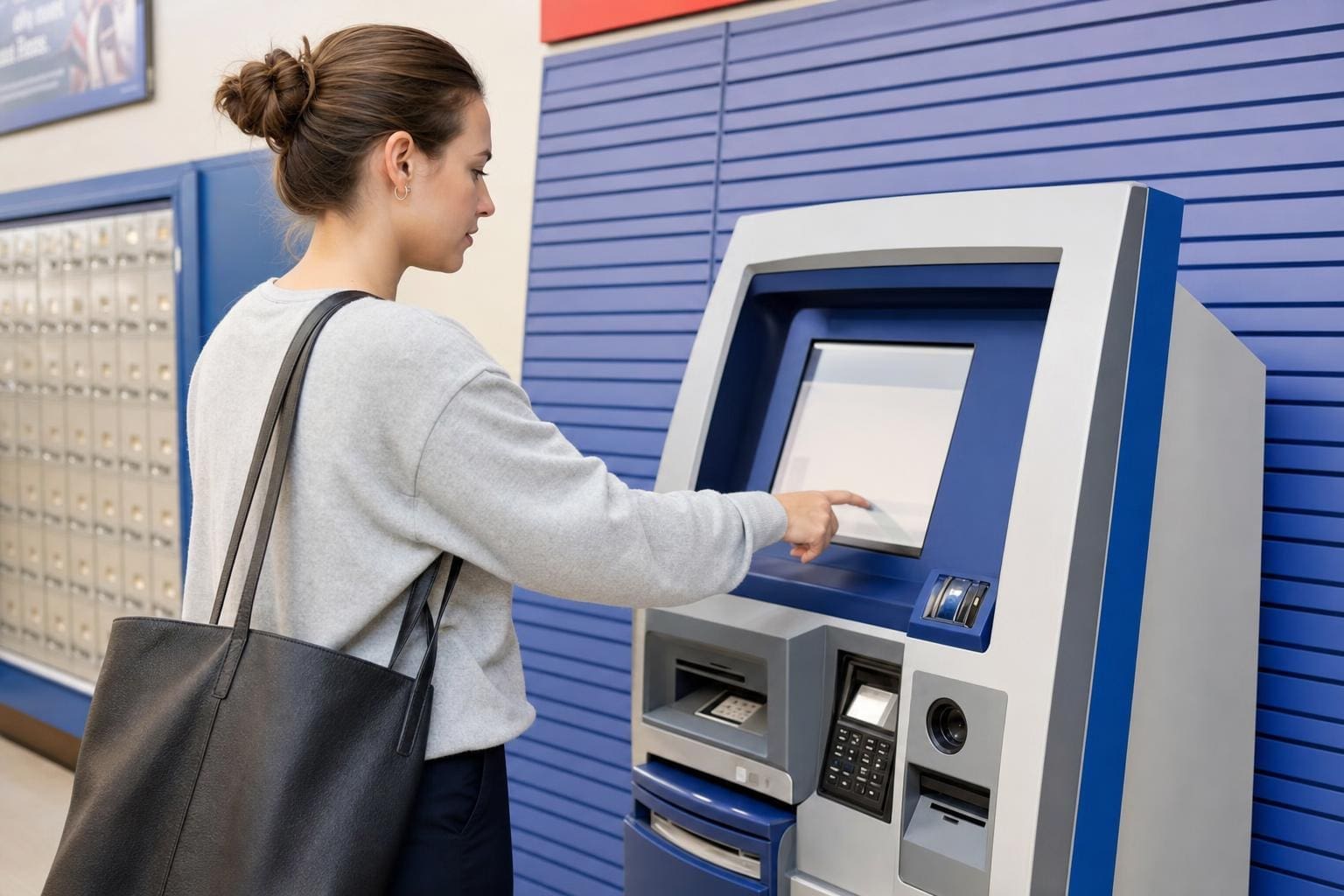
## How To Use The Post Office Self-Service Kiosk
Start at the kiosk like you would at a ticket machine: take a breath, glance at the screen, and look for the language or service button. If this is your first time, register or hit Guest. That simple step decides whether you swipe a card, scan a barcode, or type an email. Learning how to use the post office self-service kiosk gets easier after one or two tries.
### What The Screen Will Ask For
Most machines prompt for these basic choices: mail vs parcels, domestic vs international, and whether you need tracking or insurance. If you’re sending a package, the kiosk will ask for weight and dimensions. If you’re just buying stamps, you might skip straight to payment. The interface is usually icon-driven, so you can tap a picture of a box or an envelope. When the kiosk asks for an adress, type carefully — typos will show up on your label.
#### Choosing Weight And Size Options
Some kiosks have an integrated scale that weighs your item when you place it on the tray. Others expect you to select a weight range from a list. If the kiosk doesn’t detect the package, try nudging it to the center of the scale. If the scale seems stuck, the counter staff can unlock it. Don’t force anything; that can lock the machine or trigger an error.
### Printing Labels And Paying
After you enter the destination and choose services, the kiosk calculates postage and prints a label. Watch the print preview if one appears. The label will include barcode and tracking number. Grab that label and affix it to the package neatly; avoid covering the barcode with tape or by bunching the label. The kiosk will accept cards and, in many locations, cash. If you pay with cash, you might need to press a different payment option.
### Using Drop-Off And Postage Options
If the kiosk lets you pay and drop in one go, it will usually open a chute or light a slot labeled “Drop Here.” Some locations still require you to bring big items to the counter after the kiosk prints the label. Smaller packages often go into a drop bin. Remember to keep the printed reciept until you confirm delivery or track the item.
### How To Use The Post Office Self-Service Kiosk For International Mail
When you send internationally the kiosk will prompt for customs details: contents, value, and whether the shipment is a gift. Be specific about contents—“books” is better than “stuff.” If you’re unsure about restricted items, choose the “See Agent” option and take the package to the counter. Customs forms will either print with your label or appear on the screen to sign and attach.
#### Address Formats For Other Countries
Some kiosks help format addresses correctly for other countries. Use the suggested format to avoid delays. If the machine won’t accept an address, try abbreviations like “St” or “Rd” or enter the postcode first. If that still fails, speak to staff. They see these problems all day and can often fix them in a minute.
### Tracking, Insurance, And Extra Services
The kiosk will offer tracking and insurance upgrades during the purchase flow. Tracking gives you a barcode and a number to follow online. Insurance adds a small fee and protects higher-value items. If tracking is important to you, choose a service level that explicitly includes it. The machine usually emails or prints the tracking number. If you choose email, type your address slowly to avoid typos.
### What To Do If The Kiosk Freezes Or Errors
A frozen screen happens. Try the on-screen “Cancel” or “Home” button. If those don’t work, press the physical cancel key if there is one, or step away and wait a few seconds. Many kiosks time out and return to the main menu. Do not slam buttons. If the kiosk shows an error after payment, get a staff member right away with your card or reciept. They can void the transaction or print a manual label.
### Accessibility And Quiet Times
Kiosks are usually positioned lower for wheelchair access and some have audio prompts. If you need help, ask the staff — they’ll often step aside to give privacy while assisting. Early mornings or late afternoons tend to be less busy; prime lunchtime is chaotic. If you can, visit during slower windows to avoid lines.
### Practical Tips To Save Time
Bring your measurements and weight if you can estimate them. For recurring shipments, create an account so your address and frequent choices are saved. If you ship a lot, keep a roll of clear tape and a marker in your car for quick labeling. Write the recipient’s phone number on the label for international rules in some countries.
### Using A Post Office Kiosk For Stamps And Small Items
Kiosks are handy for buying stamps fast. Tap the stamps icon, select the quantity, and pay. The machine will either print adhesive stamps or a barcode that functions as postage. For simple things like stamps or flat envelopes, a kiosk can be faster than queuing for the counter.
### Security: Cards, Receipts, And Fraud Prevention
When paying, shield your PIN and remove your card promptly. Confirm the amount on-screen before approving. Keep the printed receipt until the package is confirmed delivered. If the receipt looks off or the barcode is smudged, ask for a reprint. People forget how quickly a wet label can become illegible.
### Common Mistakes And How To Avoid Them
A typical error is choosing the wrong service level and being surprised by delivery time. Read the delivery estimate shown before you pay. Another mistake is not securing the label — folding or placing the label over a seam risks loss. And don’t assume every kiosk works exactly the same. One location’s self service kiosk may have a slightly different menu than another’s.
### When To Skip The Kiosk
If your item is odd-shaped, oversized, contains restricted goods, or needs a signature on customs forms, head straight to the counter. The kiosk is excellent for routine parcels and stamped mail, but complex shipments are faster handled by a person.
### Why Learning How To Use The Post Office Self-Service Kiosk Pays Off
Once you get the hang of tapping through the menus and placing a package on the scale, the time savings are real. You’ll avoid lines and walk out with a tracking number in hand. Use the kiosk a couple times and it will feel mundane. That’s the point. Teh more you use it, the less you think about postage. If something weird happens, staff are there to help. The system is built to make simple shipments quick and predictable, not perfect. Keep one of those printed tracking numbers and you’re set.